

Creating Playlists
From the media tab, you can see the list of playlists and add new playlists.
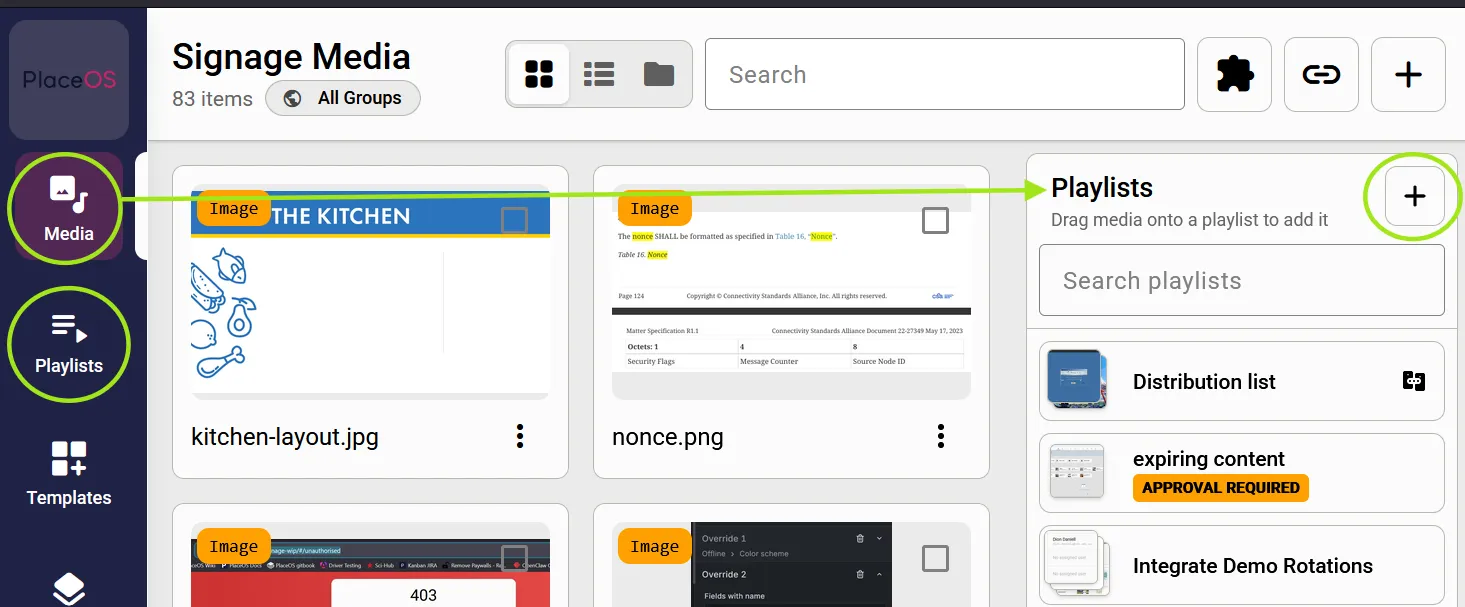
When creating a playlist you can define things like:
- Playlist shuffled: randomizes the playlist items at playback time, Select this if order doesn’t matter.
- Default play time: i.e. 15 seconds. This is the default time period images are displayed before moving to the next item.
- Orientation: Landscape, portrait, square. The target orientation - when added to zones, only displays with matching orientation will pick up the playlists.
- Animation: this is the default animation between items in the playlist
- Valid from, Valid until: Dates to start presenting and stop presenting this playlist. Good for time limited promotions / campaigns.
If you prefer to seperately schedule each media item you can configure a distribution playlist.
- each media item will have its own schedule (versus the playlist having a schedule and all the content sharing that schedule)
- the playlist defines which zones or displays the media will be presented on.
Adding Content
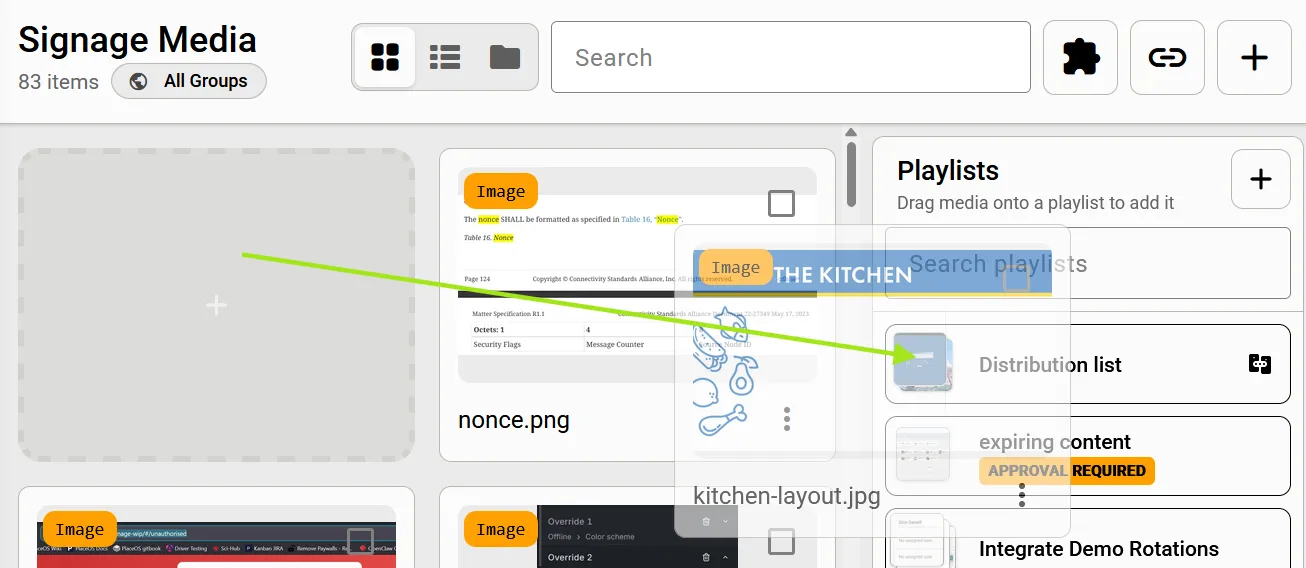
Section titled “Adding Content”From the Media tab, click and drag the media item to the playlist:
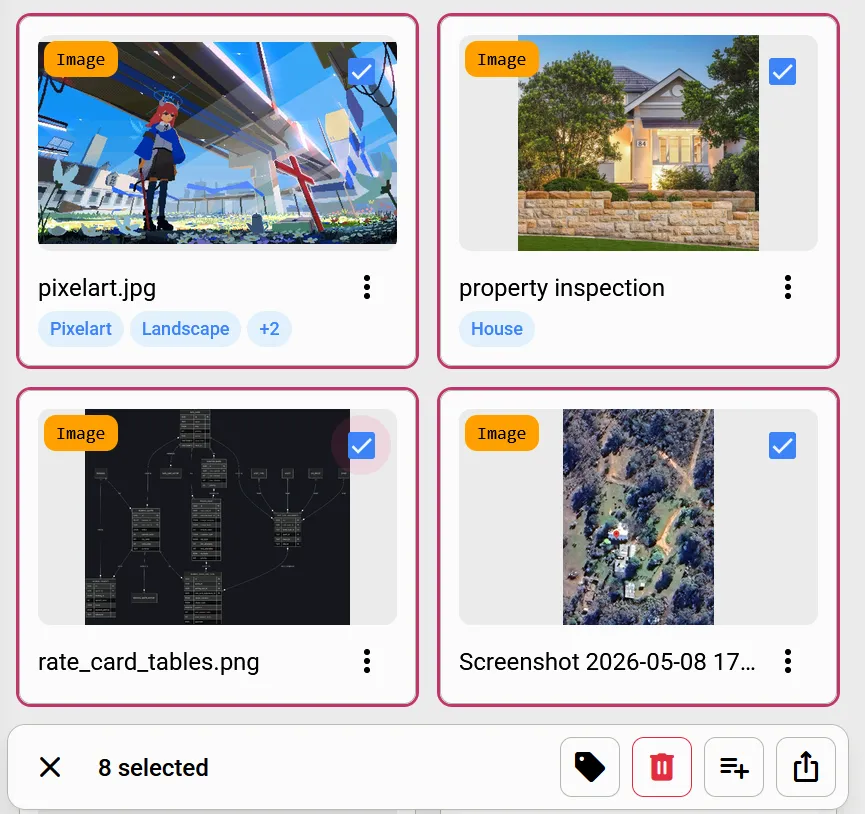
Or you can select multiple items and use the bulk action bar:
Editing Playlists
Section titled “Editing Playlists”Selecting a playlist from the left hand column allows you to:
- Reorder items (if order matters, you may have selected shuffle)
- Edit items
- Change playback time
- Change animation
- Preview item playback